Using the assistant
This page is for people who use an AIMMS application that has an AI assistant built in. You do not need to know anything about how the application was made.
What it is
The assistant works inside your planning application. It reads the same figures your screens read, and it runs the same calculations the application runs. When it gives you a number, that number came out of the application.
It knows your application and nothing else. It cannot see your email, your other systems, or anything the application does not hold.
Opening it
The assistant appears in your application, usually as a chat panel you open from the toolbar. Look for the panel button on the left of the toolbar:

The highlighted button on the left of the toolbar opens SENSAI.
Selecting it opens the assistant next to your application:
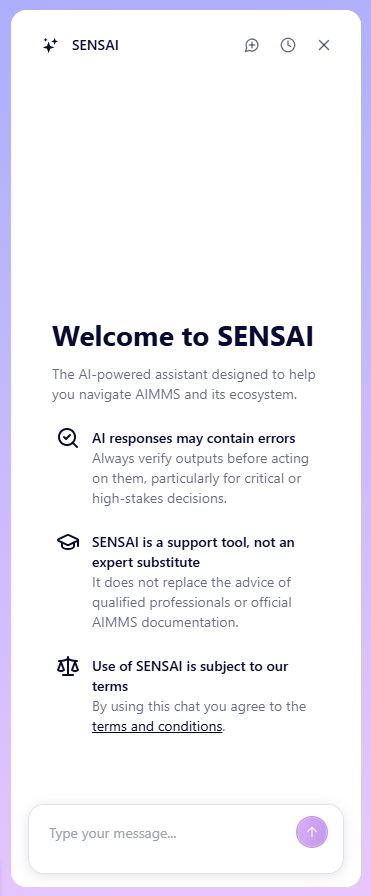
The SENSAI chat panel. Type your question in the box at the bottom.
If you cannot find the button, ask whoever looks after the application whether it has been switched on for you. It is enabled per application, in the WebUI application settings, and needs a WebUI version newer than 26.11.
What you can ask it to do
Ask about the plan.
Which weeks are we short on capacity?
What changed since the last run?
Which products are driving the cost increase?
Change a figure.
Raise the forecast for product B in week 12 by ten percent.
Recalculate.
Recalculate with that change and tell me what happened to service level.
Understand a result.
Why is that order late?
Putting those together is where it helps most: change an assumption, recalculate, read the result, change something else. This is work that would otherwise need a new screen or a request to someone else.
Does my change affect everyone?
A change the assistant makes is a change to the plan you are working on, exactly as if you had typed it into a screen yourself. Whoever else sees that plan sees the change.
If your application has scenarios, copies or a separate working version, use them as you would for any other change to the data. If you are not sure how your application handles this, ask whoever looks after it before you make your first change.
Getting better answers
Say what you want to know. “Which weeks are we short on capacity?” works better than naming a specific report.
Use your own words. The application has been described to the assistant in the terms your team uses.
Say which part you mean. “For the Rotterdam site, next quarter” narrows a question that would otherwise be answered for everything.
Follow up instead of starting again. “Now show me the same thing for week 14” keeps the context.
Check what it understood. Ask “Which weeks did you use?” or “Where did that number come from?” when the answer matters.
When it asks you to confirm
Warning
Changes take effect straight away. Once the assistant has changed something, it stays changed until someone changes it back. Note the figure you are changing before you ask, so that you can put it back if you need to.
Reading the plan happens without asking you. Anything that changes the plan stops first and asks. You will see what it is about to do, and a way to say yes or no.
For example, if you ask it to raise a forecast, you will see something like “I am about to raise demand for product B in week 12 from 400 to 440. Shall I go ahead?” before anything changes.
Read the confirmation message before approving it. If it does not describe what you meant, say no, then ask a question to check what the assistant understood before trying again.
Routines your team uses often
Your application may have routines written down for recurring work, such as a weekly planning run or a month-end check. Whoever maintains the application calls these skills. Ask for one by what it does — “run the weekly planning routine” — and the assistant works through the routine, stopping to ask you where the routine says to check with you.
If a routine your team uses regularly is missing, ask whoever looks after the application to add it. Only they can.
What it will not do
It stays inside your permissions. It sees and does only what you are already allowed to see and do in this application.
It does not change the application itself. It works with figures and runs calculations. The screens and the calculations themselves belong to whoever looks after the application.
It cannot see anything that was not made available to it. If it reports that something is not available to it, rephrasing the question will not make it available.
When it gets something wrong
It can misunderstand you. If you say “week 12” and your team means the fiscal week while the application means the calendar week, the answer will be correct for the calendar week and wrong for the question you meant. The “check what it understood” questions above will show it.
If an answer looks wrong, ask “where did that come from?” and “which figures did you use?” before you either act on it or dismiss it.
If it is still wrong, tell whoever looks after the application, and give them the question you asked and the answer you got. Most of these are fixed by describing something more clearly inside the application, and the example is what they need in order to make the fix.
Your conversations
Your conversations with the assistant, and a record of what it read, changed and ran, are stored by AIMMS on your company’s behalf. By default they are deleted after 30 days without activity. Your company can ask AIMMS for a different period. A conversation is a work record and is retained as one.
Note
SENSAI Apps is a Preview feature and is still being developed. Send feedback to whoever looks after the application.